Make a sale
Create a sale, take payment, and show or share a receipt.
Who can do this
Cashiers, managers, and owners with sale permission.
Before you begin
- Sign in and select the correct counter or location.
- Make sure a shift is open when your counter requires one.
- Confirm the products you need are available to sell.
Steps
1. Open Sell
On Android, select Sell from the bottom navigation. On web, open Point of sale.
2. Add products
Use Search products to find an item, or choose it from the recent or frequent list. Tap an item to add one unit. Open the cart to adjust a quantity or remove a line.
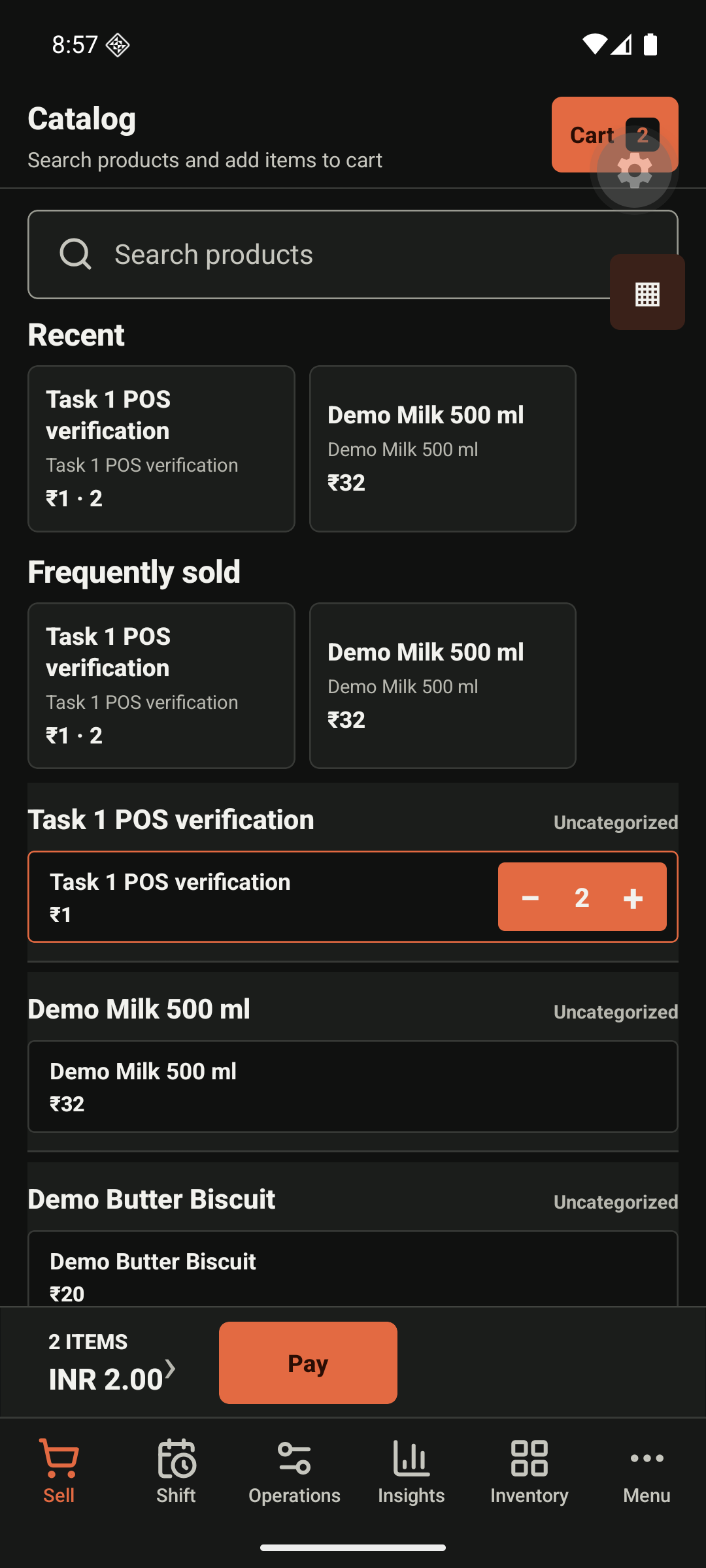
3. Review the cart
Check quantities, discounts, tax, and the payable total. Ask a manager if a discount or price override requires approval.
4. Select Pay
Choose the payment method shown for your counter, enter any required amount, then confirm payment once. Do not tap again while the payment is processing.
5. Confirm the receipt
After the invoice is created, review the completed receipt. You can use the available share, download, or print action. A printer or delivery problem does not cancel a completed sale.
Expected result
The sale receives a permanent invoice number, payment status, and receipt. Stock changes when inventory tracking is enabled for the product.
Common problems
| Problem | What to do |
|---|---|
| Pay is unavailable | Add at least one product to the cart. |
| A discount cannot be applied | Ask a manager to approve it if your role has a limit. |
| Payment took too long | Wait for the result-unknown message to resolve before trying again. |
| Receipt did not print | The sale is still complete; retry printing from the receipt. |