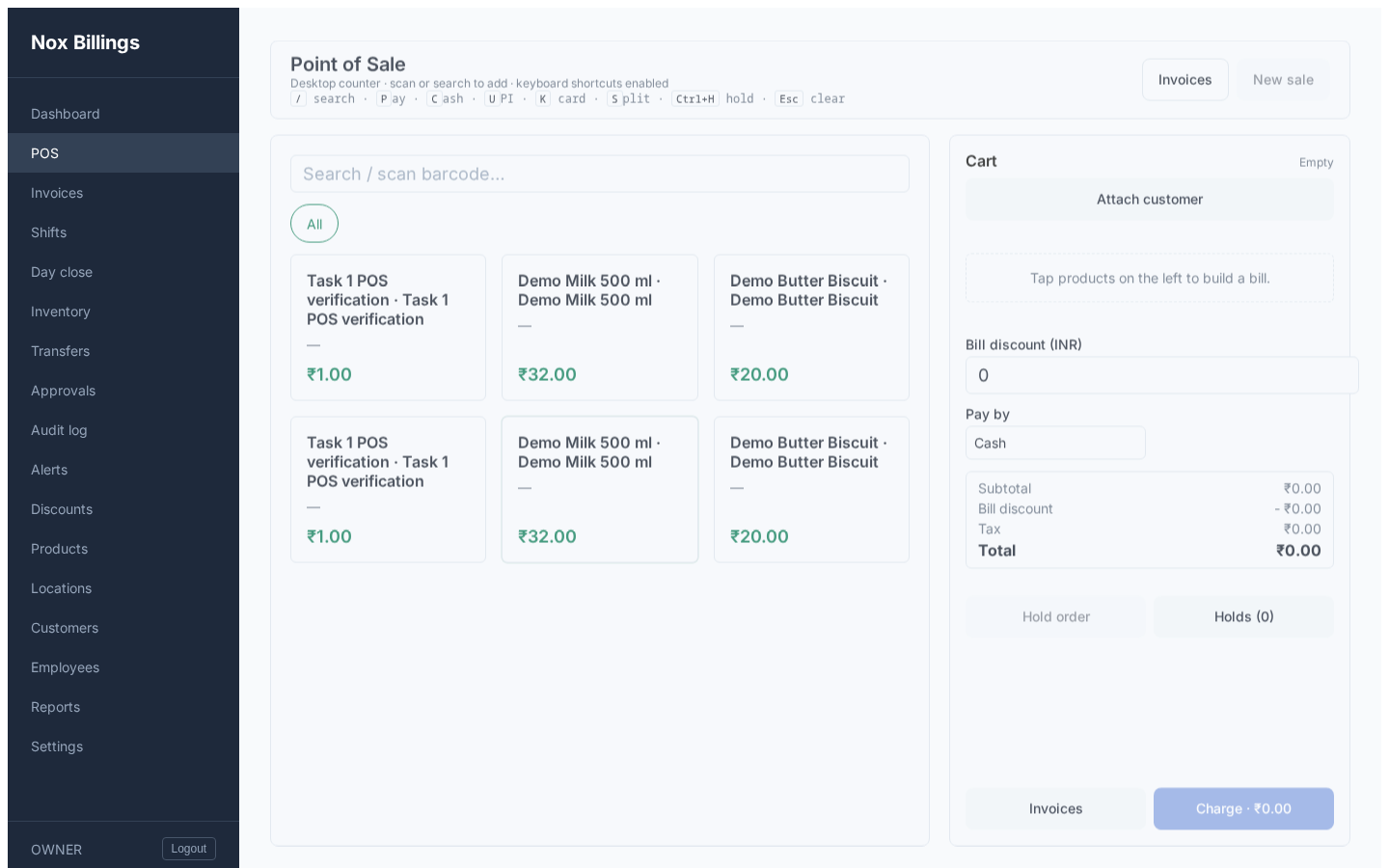
Run your workspace
Use the bottom navigation on Android, or the left navigation on web, to move between selling, shift work, operational queues, insights, inventory, and management. The options shown depend on your role.
Sell
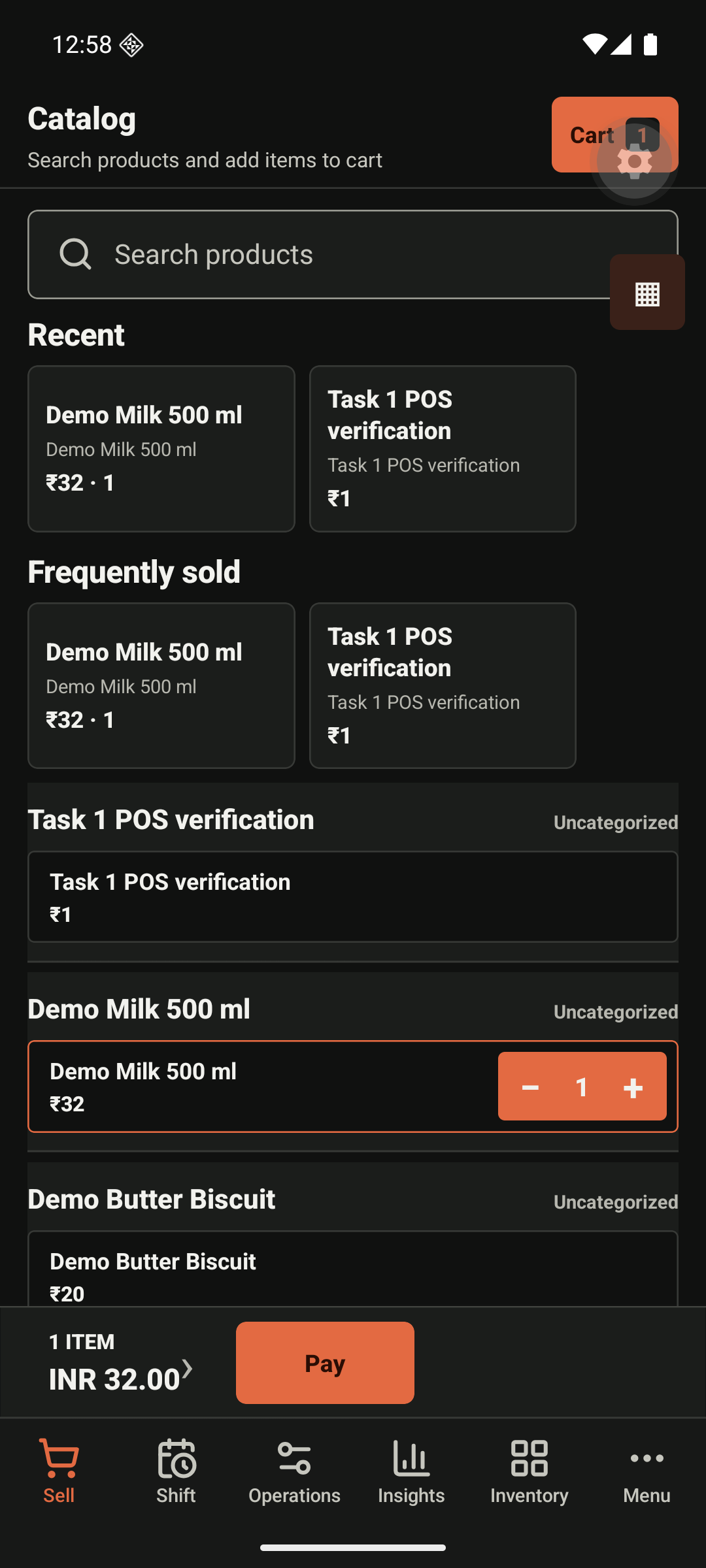
Choose Sell to search the catalogue or scan a barcode. Tap a product to add it to the cart, then open Cart and choose Pay when the order is ready. The total remains visible above the navigation so a cashier can confirm it before charging.
Shift and operations
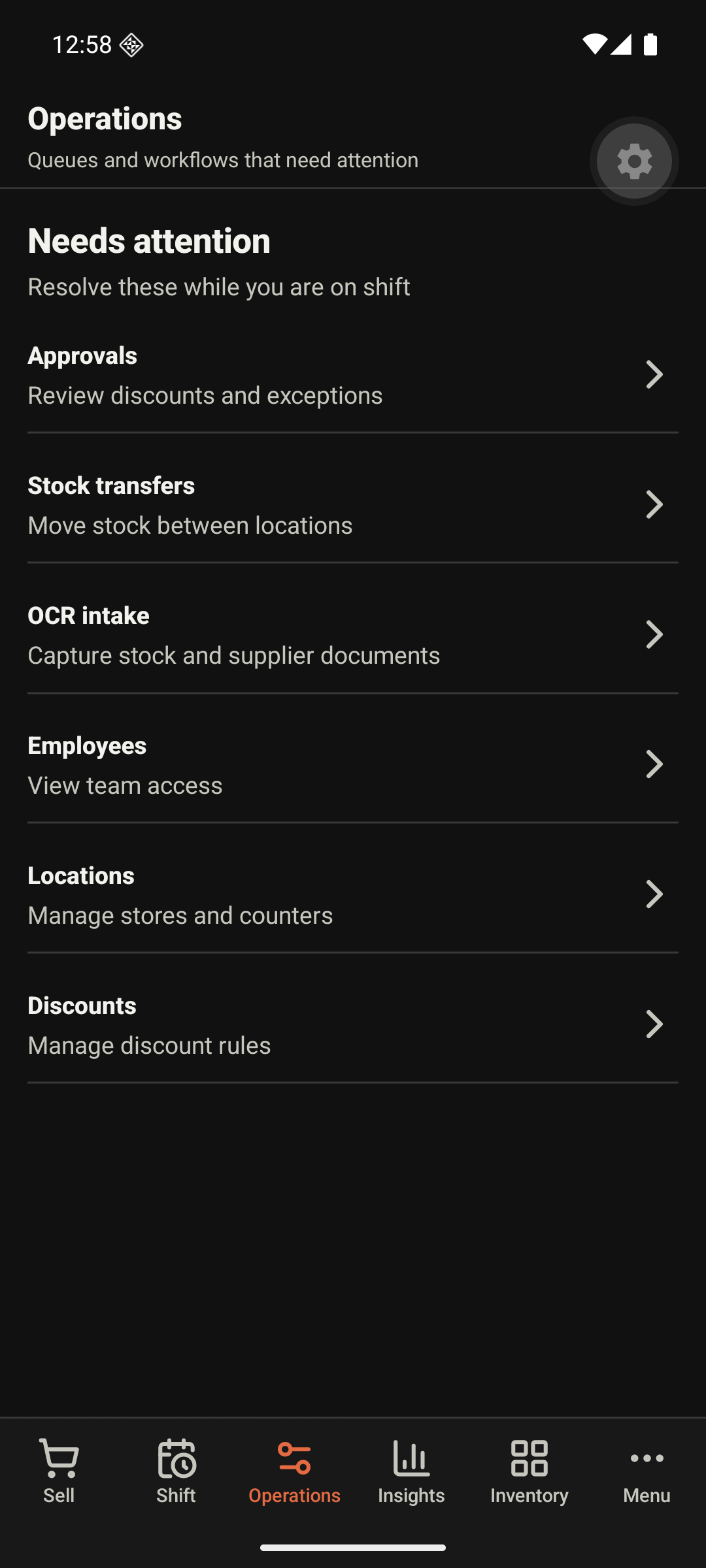
Choose Shift to start, review, or close the current counter shift. Choose Operations to work through approvals, transfers, OCR intake, employee access, locations, and discounts. Resolve a queue item before moving on; approval and inventory exceptions can affect a sale or stock count.
Insights and inventory
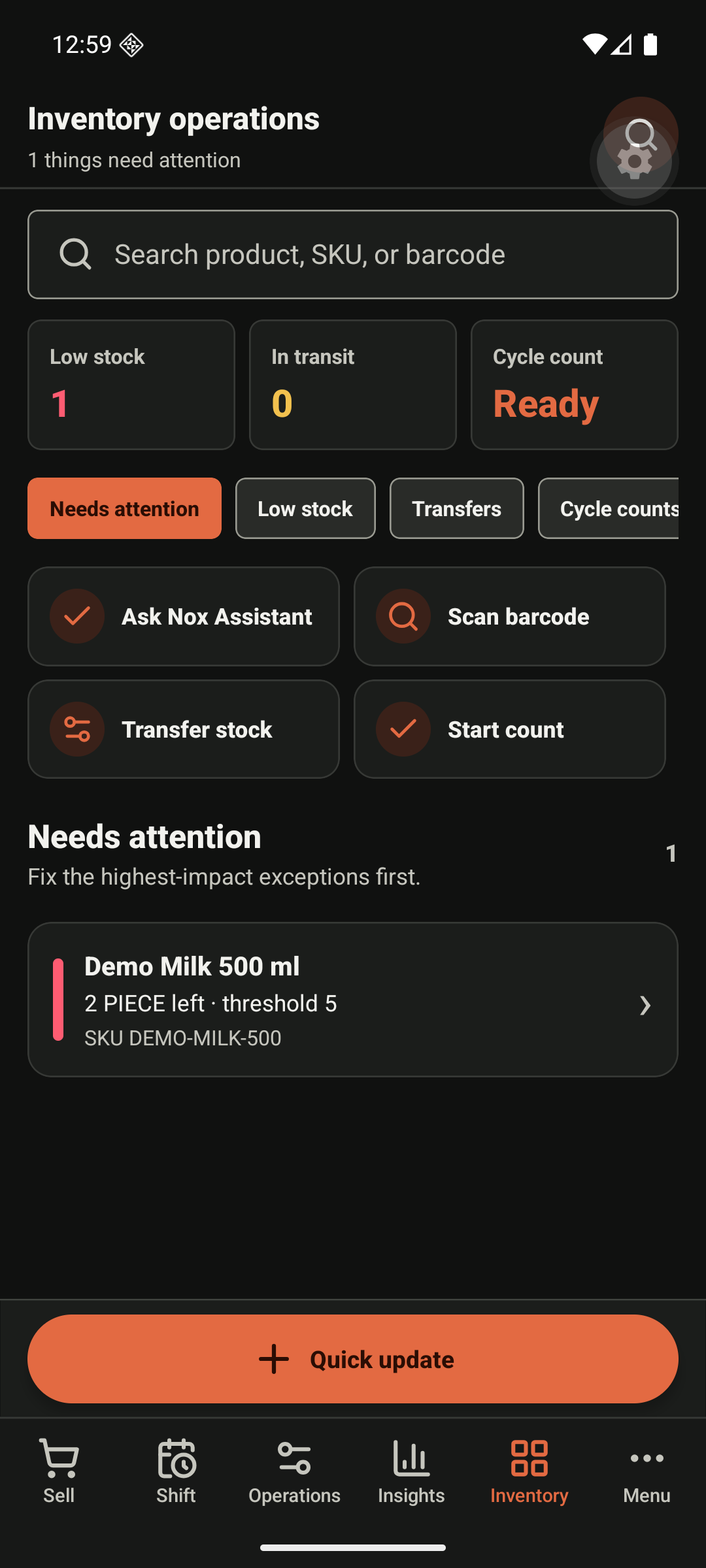
Choose Insights for sales and stock signals. Choose Inventory to search a product, find low-stock items, transfer stock, scan a barcode, start a count, or make a quick stock update.
Manage
Choose Menu (labelled Manage) for the back-office destinations:
- Products — catalogue, prices, product type, and sellability.
- All Stock — quantities by product and location.
- Transfers and Receiving — move stock or record a supplier delivery.
- Approvals and Cash Movements — resolve exceptions and reconcile the counter.
- Reports — review sales, margin, and stock insight.
- Invoices — find completed sales, refunds, and receipts.
Only owners can manage all settings and access. If an item is absent, ask an owner to review the role assigned to your account.
Web workspace map
The web dashboard provides the same operational areas with a wider layout. Start on Dashboard for the day’s summary, use POS for sales, and use the left navigation for invoices, shifts, inventory, reports, settings, and audit history.