Manage stock
Find stock that needs attention, then update, transfer, or count it.
Who can do this
Managers and owners with inventory permission.
Steps
1. Open Inventory
Select Inventory from the Android bottom navigation, or open Inventory on web.
2. Review what needs attention
Use the low-stock, in-transit, and cycle-count cards to focus the next action. Search by product name, SKU, or barcode.
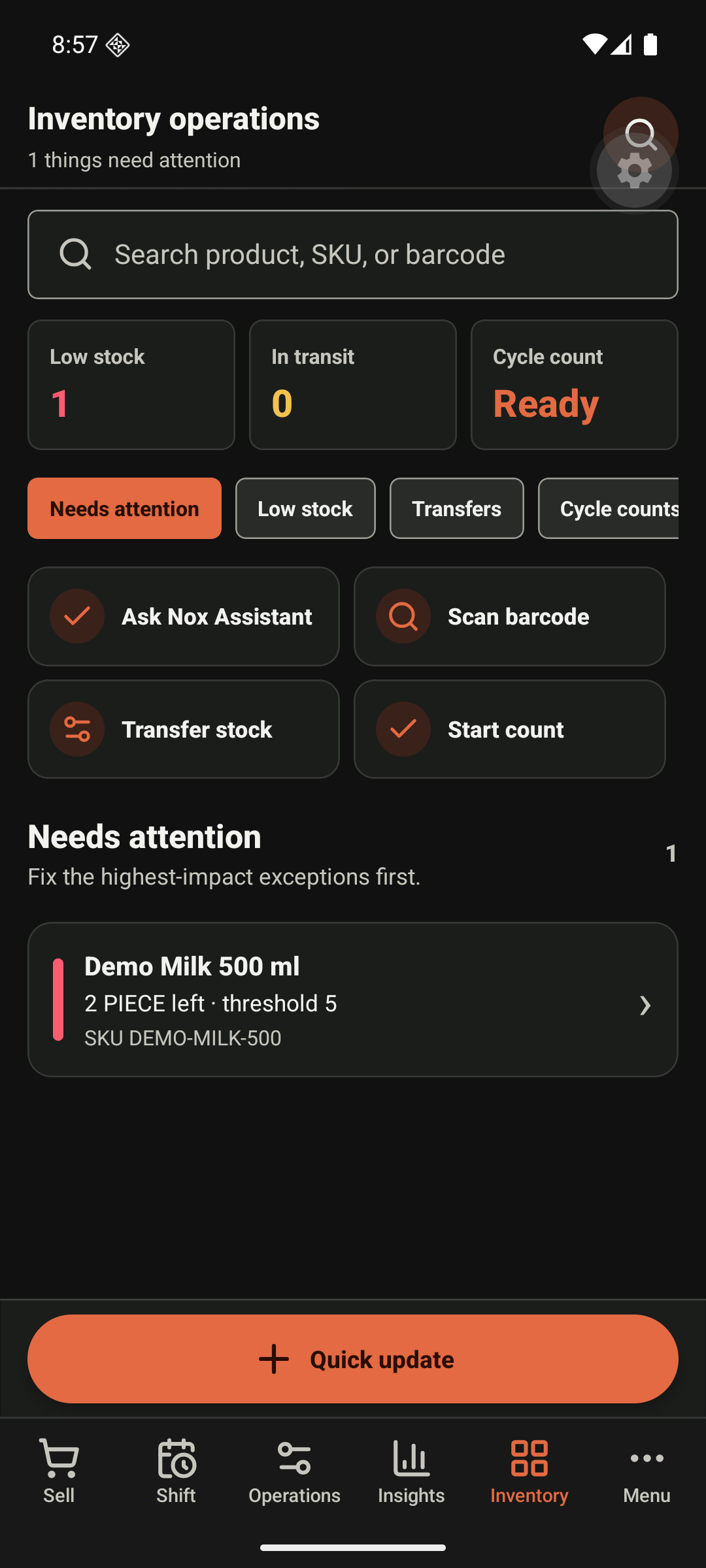
3. Choose the correct action
- Choose Quick update for a confirmed stock change.
- Choose Transfer stock to move stock between locations.
- Choose Start count to record a physical count.
- Use receiving or OCR intake only when you are adding verified supplier stock.
4. Check the result
Review the new available quantity and any low-stock signal. If the app is offline, check whether the update is queued before leaving the screen.
Common problems
| Problem | What to do |
|---|---|
| Product is not found | Check the SKU or barcode, then clear search and try the product name. |
| A transfer cannot be completed | Confirm the source location and available quantity. |
| Stock count is rejected | Correct the quantity or required reason, then submit again. |